Chapter 8. Order Placement  |
||
|---|---|---|
| Prev | ||
| Chapter 8. Order Placement |
||
|---|---|---|
| Prev | ||
Table of Contents
Axial Finance allows for direct placement of stock orders to brokers with whom a secure Internet connection agreement has been established.
In addition to the accessible brokers, Axial Finance includes a feature, allowing users to practice placing orders from the software without any financial commitment.
Order placement can be performed:
either directly from a price chart (see paragraph Orders from a chart)
or from the order book (see paragraph Orders from an order book)
or automatically via a real-time strategy (see paragraph Orders from a real-time strategy)
Axial Finance also features an additional and independent trading portfolio from the portfolios available in the screen.
Actual positions opened with the broker are displayed and updated in real-time within the trading portfolio.
The purpose of the software is not to perform accounting management of orders with the trading portfolio; this is the responsibility of the broker. The primary purpose of this portfolio is to enable real-time monitoring of open positions and to know realized and potential gains at any time.
In the general menu, click on and enter the identifier and password used to connect to the broker.
The selected broker name and available accounts are displayed in the toolbar of the section. In the example below, the broker Lynx is selected:

The secure connection with the broker is automatic. Once established, the broker's name appears on a green background. If the connection drops and the background turns red, click on the broker's name to reopen it.
To open the trading portfolio, click on the button
 at the top of
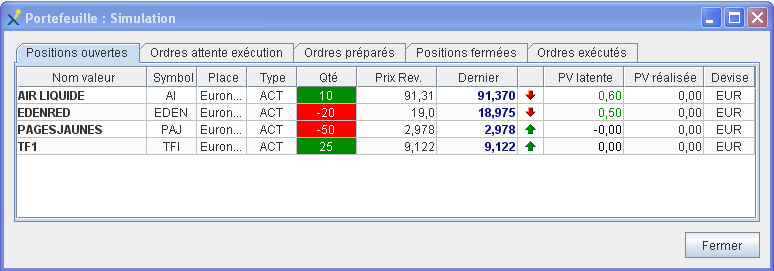
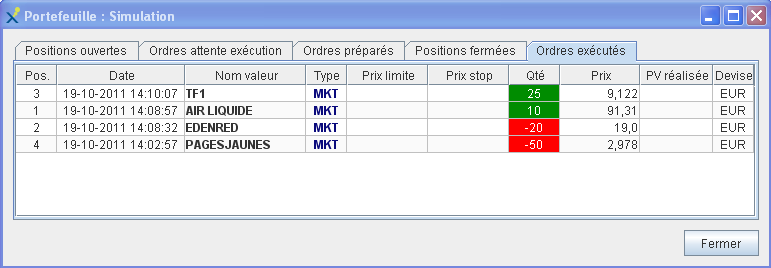
The trading portfolio displays 5 lists including:
Open positions
Orders pending execution
Prepared orders
Closed positions
Executed orders
The list of open positions (see above) displays the following information:
|
Instrument Name |
The name of the instrument |
|
Symbol |
The mnemonic code of the instrument |
|
Exchange |
The exchange where the order was executed |
|
Type |
The type of instrument (see above) |
|
Qty. |
The quantity of instruments in the position, with a green background for "Long" (buy) and red for "Short" (sell) |
|
Avg. Cost |
The average cost of the quantity remaining in the position |
|
Last |
The last quoted price, updated in real-time |
|
|
A vertical arrow indicating whether the position is winning or losing for the quantity remaining in the position |
|
Unrealized P/L |
The unrealized profit/loss for the quantity remaining in the position, updated in real-time |
|
Realized P/L |
The profit/loss already realized from the position |
|
Currency |
The quoting currency of the instrument |
To send a position closing order to the broker, double-click on the position line to open the window that then allows you to request the transmission of the corresponding order.
Orders can be prepared and kept in memory in a waiting list before transmission.
To send a prepared order to the broker, double-click on the order line to open the order transmission window.
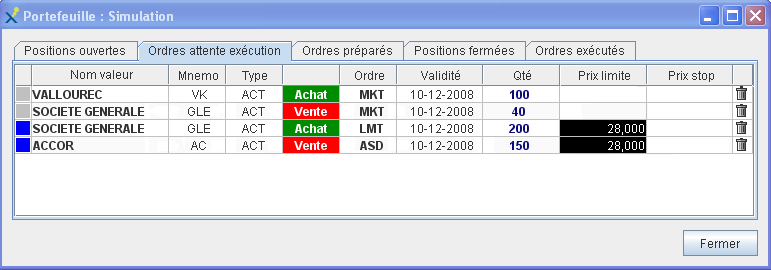
The list of transmitted orders pending execution displays the following information:
|
Order Status |
The order status is indicated in the first column by a color code defined in the following paragraph Order Color Codes |
|
Instrument Name |
The name of the instrument |
|
Symbol |
The mnemonic code of the instrument |
|
Type |
The type of instrument is defined by the following labels:
|
|
Order Nature |
The nature of the order is defined by the color code: green for "Long" (buy) and red for "Short" (sell) |
|
Order |
The type of order is defined by the following labels:
|
|
Validity |
The expiration date of the order's validity |
|
Qty. |
The quantity of instruments |
|
Limit Price |
The limit price |
|
Stop |
The stop price |
|
Last Column |
The last column allows you to cancel the prepared order by clicking on the corresponding box |
The following color code is applied to specify the status of orders in charts:
|
|
Prepared order but not yet transmitted to the broker |
|
|
Transmitted order but not yet acknowledged by the broker |
|
|
Transmitted order, acknowledged and pending execution by the broker |
|
|
Transmitted order but pending cancellation by the broker at the client's request |
|
|
Transmitted order, acknowledged and cancelled by the broker |
|
|
Transmitted order, acknowledged and fully executed by the broker |
|
|
Transmitted order, acknowledged but became inactive at the broker |
Axial Finance includes a feature, which allows the user to practice placing orders from the software without taking any financial commitment.
The simulator executes received orders according to their type with a delay of a few seconds based on the last known price in the software. For example, for a stop order (ASD), the simulator waits until the last price reaches the limit price to execute it.
Axial Finance allows you to place an order to the broker from the instrument's chart.
The chart window features a trading zone that allows you to open the order placement window.
The prepared or transmitted order, as well as the open position, are displayed in the chart window according to a color code specified below.
By double-clicking directly on the chart on the horizontal line representing the prepared order or the open position, the user requests that the broker execute the order.
To open the trading zone which will appear at the top of the chart, click on the option in the menu of the chart window or from its context menu (right-click in the chart).

This trading zone features two buttons

 to open the order placement window. In the event that a position is open for the instrument in the chart,
it also displays prices from the real-time feed.
to open the order placement window. In the event that a position is open for the instrument in the chart,
it also displays prices from the real-time feed.
Click on the button in the trading zone corresponding to the nature of the order to be
prepared, for a buy order
or for a sell order.
The order placement window below will open.
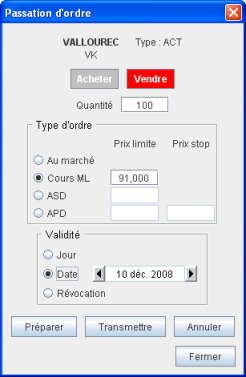 |
This window displays the name, mnemonic code, and type of instrument. Define the order to be placed:
Then click on the button to add this order to the list of prepared orders without transmitting it to the broker, or on for immediate transmission to the broker. |
The chart displays the prepared or transmitted order as well as the open position as follows:
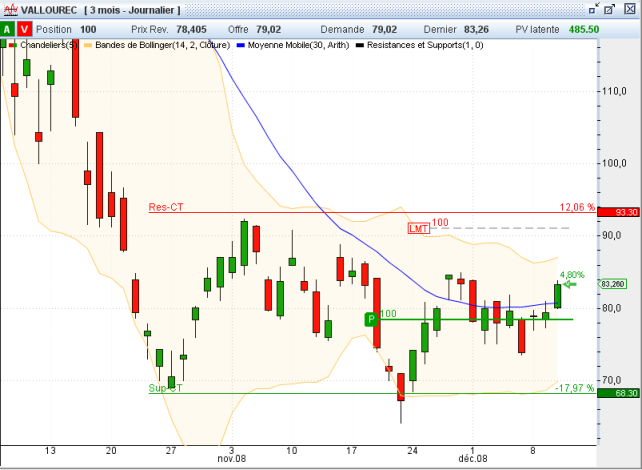
A prepared order is displayed as a light gray dotted line. The color of the line depends on the status of the order (see the color code defined in the paragraph Order Color Codes).
To the left of this line, the order type and the requested quantity are displayed.
For an order not yet transmitted to the broker, it is possible to modify the price on the chart by vertically dragging the price line with the mouse.
An open position is displayed as a solid line of the color corresponding to the nature of the order and with the symbol to its left (to represent an open position), the quantity of instruments, and the % of potential profit updated in real-time.
To place a closing order for this position, left-click on the line of this position. The order placement window (see above) opens. Modify the order details if necessary, then click on the button.
Axial Finance allows for the placement of LMT or ASD type orders to the broker from the instrument's order book.
The order book features a trading zone to open the order placement window.
The prepared or transmitted order, as well as the open position, are displayed in the order book using the same color code as for orders placed from a chart.
By double-clicking directly on the horizontal line representing the prepared order or the open position in the order book, the user requests that the broker execute the order.
To open the trading zone located vertically to the right of the chart, check the box present at the top of the vertical scale of the book.
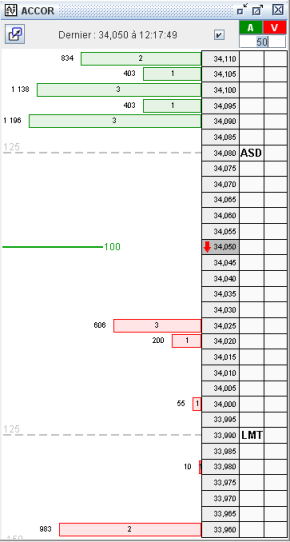 |
This trading zone features two columns
|
Click on the desired price level box in the trading zone corresponding
to the nature of the order to be prepared, for a
buy order or for a sell order.
By convention, a left-click of the mouse prepares an LMT type order, and a right-click an ASD type order.
A prepared order is displayed as a light gray dotted line. The color of the line depends on the status of the order (see the color code defined in the paragraph Order Color Codes). To the left of this line, the requested quantity is displayed.
For an order not yet transmitted to the broker, it is possible to modify the price on the book by vertically dragging the price line with the mouse.
To transmit the prepared order to the broker, left-click on the box in the trading zone column to open the order placement window. Modify the order details if necessary, then click on the button.
An open position is displayed as a solid line of the color corresponding to the nature of the order with the quantity of the position to its right.
The Maestro and Global Trader versions allow the real-time execution of strategies whose position opening and closing signals are displayed on the chart in the same way as during a backtest of a strategy in a chart (see paragraph Equity curve in the main chart).
The feature allows for automatic order placement based on signals generated by the strategy. Transmitted orders, executed orders, and the status of open positions are automatically recorded in the trading portfolio.
For automatic order placement to one of the brokers directly accessible from Axial Finance, a prior agreement with Ariane Software must be concluded.
In the menu of the chart window, choose the option to open the definition window below.
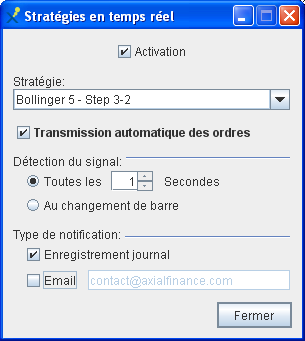 |
Choose the strategy from the drop-down list among those present in the software library. Optionally check the box. When this box is unchecked, only strategy signals are displayed in the chart. Define the mode for opening and closing positions: Define the in addition to the graphical display. Check the box. |
When a strategy is activated for real-time execution, an icon and a button
 appear side by side and centered in the title bar of the chart.
The icon indicates that a strategy is active. The button is used to start and stop the operation
of the strategy in real-time.
appear side by side and centered in the title bar of the chart.
The icon indicates that a strategy is active. The button is used to start and stop the operation
of the strategy in real-time.
By clicking this button, it turns green and execution begins.
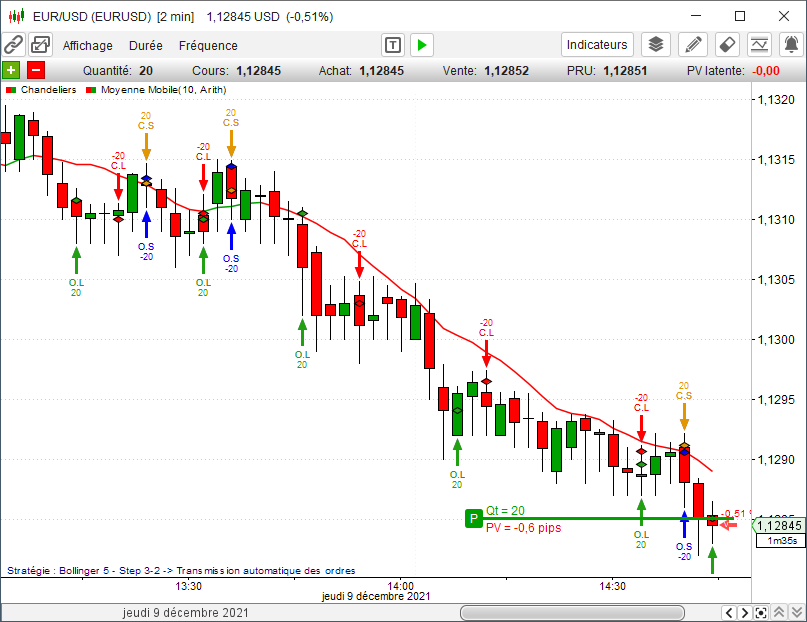
On the chart, opening and closing signals appear along with the level of the open position including the quantity of instruments and the % of potential profit. These signals are kept in memory and re-displayed in the chart upon subsequent software openings when the strategy that generated them is activated in the chart. To remove these signals, click on the option from the menu of the chart.
At the bottom left of the chart, a label displays the name of the strategy along with the Automatic order transmission mention if applicable.
For using the choice, it is important that the chosen frequency is compatible with the speed of price changes to be able to detect a signal whose duration is brief from one transaction to the next.