Table of Contents
- 1. General Information
- 2. Tips before first use
- 3. Installation
- 4. Workspace presentation
- 5. Exchanges - Markets - Business Sectors
- 6. Instrument lists
-
- 6.1. Principles for implementing instrument lists
- 6.2. Automatic update of the reference list
- 6.3. Adding an instrument to the reference list by the user
- 6.4. Searching for an instrument by name or ISIN code
- 6.5. Creating and updating personal lists
- 6.6. Deleting an instrument from the reference list
- 6.7. Instrument details presentation
- 7. Updating "end of day" prices (or EOD)
- 8. Updating "intraday" prices

- 9. Miscellaneous functions
Axial Finance is a stock market software that offers a global solution for:
-
receiving stock market prices via the Internet:
-
"end of day" prices available after market close,
-
real-time prices in a data stream (i.e., stock transactions with the order book),
-
-
performing Technical and Graphical Analysis studies based on "end of day" and "intraday" stock prices,
-
issuing alerts during real-time operation. These alerts are defined by the user and can take into account all characteristics of price evolution,
-
searching market by market for instruments that satisfy user-defined decision rules,
-
defining buy-sell strategies based on user-programmed rules and verifying their results on historical stock prices,
-
implementing Trading Systems and analyzing their results on "end of day" and "intraday" prices"
-
implementing various trading decision support tools,
-
managing any number of stock portfolios,
-
performing Fundamental Analysis of listed companies and comparing their financial ratios,
-
placing stock orders with brokers with whom a partnership has been established.
Axial Finance is the result of all the latest IT and Internet technologies. The program is entirely developed in Java and contains a relational database.
These technologies provide the program with great flexibility, user-friendliness, and simplicity in the Human-Machine interface, speed in executing complex operations, and allow for keeping a large amount of information in memory.
Axial Finance is designed to process instruments from different global exchanges, each in its respective currency.
With its various versions, Axial Finance covers the needs of individual investors (beginners or experienced), traders, investment clubs, asset managers, and professional investors.
Its use is intuitive and extremely user-friendly thanks to a particularly well-studied ergonomics.
Axial Finance is organized modularly to perform the following main functions:
-
Technical and Graphical Analysis of stock prices based on "end of day" prices and real-time "intraday" prices received.
-
Trading decision support for short and medium terms, including detection of instrument trends and detection of buy and sell signals.
-
Real-time trading on stocks, Futures, Forex, ...
-
Programming of Trading Systems and analysis of results on "end of day" and "intraday" prices.
-
Portfolio Management
-
Fundamental Analysis of listed companies and comparison of their financial performance.
Important
This manual applies to the three versions of the range: Axial Finance Premier, Axial Finance Expert, and Axial Finance Maestro.
The chapters or paragraphs of this manual are identified by the icon:
-
when they apply only to the Axial Finance Expert
and Axial Finance Maestro versions.
-
 when they apply only to the Axial Finance Maestro
version.
when they apply only to the Axial Finance Maestro
version.
Warning
By providing this software, the company Ariane Software solely aims to provide users with a high-performance tool for analyzing instruments, storing market and financial information, as well as providing reflection and decision support for performing subsequent transactions.
Each user retains full responsibility for the decisions they may be required to make following the use of this software.
Neither Ariane Software, nor its directors, officers, employees, members, agents, or consultants shall be held liable to any person for any losses, damages, costs, or expenses whatsoever (including loss of profit, loss of use, direct, indirect, incidental, or consequential damages) resulting from inaccuracies, errors, omissions, or alterations in the results obtained through the use of this software.
-
Intel Core processor or equivalent at 2 GHz or higher
-
Operating systems:
-
Windows (10 or higher)
-
macOS (10.14 "Mojave" or higher)
-
Linux
-
-
RAM of 4 GB or more
-
Available free disk space of 500 MB
-
High-speed Internet connection
Axial Finance is designed to support the main existing screen resolutions. A minimum resolution of 1650x1080 is necessary to use the application comfortably. A higher resolution will improve the presentation quality of the charts.
Important
During the execution of the Axial Finance program, it is required to connect to the Internet. Therefore, the computer installation must allow the various necessary connections.
-
In cases where the computer is behind a firewall, proxy, router, or corporate network or via a Wifi connection, it is necessary that certain TCP ports remain open:
-
ports 80 and 443 for downloading "end of day" prices
-
ports 8080, 5672 and 2189 to 2196 to receive the real-time stream in "streaming" mode.
-
-
In cases where the computer is equipped with an antivirus system, it is necessary that this antivirus allows connections to pass through without modifying their content to the following sites:
-
update.ariane-software.com to receive software updates
-
data.ariane-software.com to download the market instruments repository
-
quotefeed.abcbourse.com to download "end of day" prices
-
*.esignal.com to receive the real-time stream
-
Axial Finance is provided with the "end of day" price histories for Euronext Paris stocks and indices for the last 20 years known at the date of creation of the installation file. These histories must be completed by the user via downloading or importing files.
For other exchanges, the user must download or import these histories into the software.
Consult the manual in paragraphs Updating end of day prices or Updating intraday prices.
The software is provided with a demonstration portfolio. Follow the procedure described in paragraph Creating, Cancelling a portfolio to delete it and create one or more portfolios.
Familiarize yourself with the use of these procedures in paragraph User data Backup and Restoration.
At each launch, Axial Finance checks for the availability of a new version of the application and installs it automatically (Note: therefore, an Internet connection must be open at application launch). An update window indicates improvements, modifications, or corrections brought to the application.
In case that the use of the software reveals certain difficulties, the website www.axialfinance.com is at your disposal to receive your questions at the following address:
https://www.axialfinance.com/support.jsp.
Fill out the form in detail and click on the button. The Ariane Software team will provide an answer as soon as possible.
-
Download the file
axialfinance-expert-7.2.1.exeand execute it to start the installation procedure. -
To launch the application, click on the icon placed on the desktop during installation or go through the menu.
-
Download the file
Axial Finance 7.2.1.zip; the application decompresses automatically in the Downloads folder (otherwise click on the icon to decompress it). -
Drag the Axial Finance icon into the folder.
-
Click on the Axial Finance icon; an instrument message indicates that the launch was blocked (this message appears during the first launch only).
-
Open , then in the section, click on the button to authorize the application opening.
The installation mode under Linux varies depending on the distribution used:
-
Click on the
.debfile to launch the installation. -
Click on the Axial Finance icon in the menu to start the program.
-
Click on the
.rpmfile to launch the installation. If the installation does not start, switch to manual mode by typing the following instruction in the command line:rpm -Uvh axialfinance-expert-@project.version..expert@-1.noarch.rpm
-
Verify that the correct Java version is installed by typing in the command line:
java -version
Axial Finance is certified to work with OpenJDK 8 and Oracle Java 8. If none of these versions are integrated into your Linux distribution, it must be downloaded and installed separately.
-
Click on the Axial Finance icon in the menu to start the program.
-
Copy the file with the
.tar.bz2extension into an installation directory of your choice. -
Decompress the archive from the command line by typing:
tar -jxf axialfinance-expert-7.2.1.tar.bz2
-
Verify that the correct Java version is installed by typing in the command line:
java -version
Axial Finance is certified to work with OpenJDK 8 and Oracle Java 8. If none of these versions are integrated into your Linux distribution, it must be downloaded and installed separately.
-
To launch the application, click on the
axialfinance.shscript located in the installation directory.
The workspace in Axial Finance is organized around a number of screens allowing simple and direct access to the different functions of the software.
This workspace, schematized below, consists of the following parts:
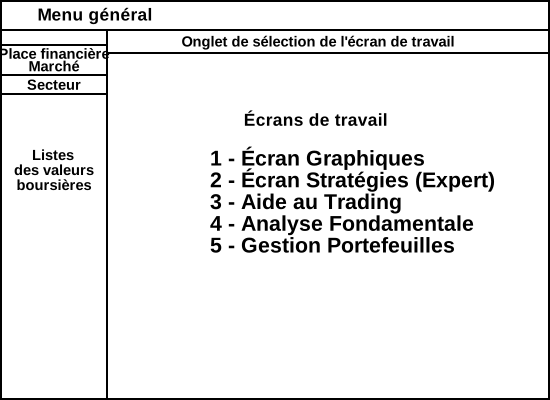
The general menu contains six main options:

The menu to choose between:
|
|
to re-save the opened workspace or save this workspace under a name to be entered |
|
|
to rename an existing workspace. |
|
|
to delete an existing workspace. |
|
|
to open the restoration window in Axial Finance for information stored on the computer's hard drive or an external device: workspaces, supports/resistances, portfolios, financial data, and personal lists of instruments. |
|
|
to open the backup window on the computer's hard drive or an external device for the user's personal data: workspaces, supports/resistances, portfolios, financial data, and personal lists of instruments. |
|
|
to open a new window of the type to be specified according to the version: Chart, Price Table, Screener, Rankings, Order Book, Transaction List, TickFlow. |
|
(List of saved workspaces) |
to open one of the saved workspaces. |
|
|
to close the Axial Finance program. |
The menu to choose between:
|
|
to create and update personal lists of instruments from the reference list, lists that can contain instruments from different exchanges. |
|
|
to consult the weighting of instruments in the main Euronext indices and calculate the variation in index points resulting from the variation in an instrument's price. |
|
|
to allow the user to add other instruments to the Reference List in addition to those provided with the software, which are automatically updated at each launch. |
|
|
to display the characteristics of the instrument. |
|
|
to perform a nominal division (or split) of the selected instrument. |
|
|
to display current exchange rates for the currencies of the main exchanges. |
The menu to choose between:
|
|
to perform the download of "end of day" prices. |
|
|
to program the Automatic mode for downloading "end of day" prices. |
|
|
to download historical intraday prices for the last 12 months. |
|
|
to update stock prices from prices contained in an external file (Note: alternative to the download and update procedures in the general menu ). |
|
|
to create an external file with the prices of an instrument stored in the software. |
|
|
to inspect and manually modify the prices of an instrument. |
The menu to choose between:
|
|
to open the programming window for personal indicators. |
|
|
to open the signals programming window. |
|
|
to open the programming window for rules used in Market Screening within the screen. |
|
|
to open the trading strategies programming window. |
The menu to choose between:
|
|
to define the display mode for the instruments list:
|
|
Data synchronization |
to configure user data synchronization with the Ariane Software server. |
|
|
to, upon opening the software, find the workspace as it was at the close of the previous session or to open the last selected and saved workspace. |
|
|
to choose the broker to which stock orders will be transmitted. |
|
|
to, upon opening a new chart window, define the chart characteristics (dimension, scales, ...), the present technical indicators as well as the chart drawing style. |
|
Character size |
to increase or decrease the character size used in the application. |
|
Audio alerts |
to configure sounds emitted during alert detection. |
|
|
to open the dialog window for updating economic business sectors. |
|
|
to open the dialog window allowing the definition of brokerage fee calculation modes for orders entered in portfolios. |
|
|
to define the information to be included in the charts resulting from the application of strategies (Equity curves). |
|
|
to review active or expired subscriptions, as well as to enter the identifier and password for receiving the real-time stream. |
|
|
to choose the interface skin style of the application. |
|
Language |
to change the language of the application (after restart). |
The menu to choose between:
|
|
to consult the user manual on screen. |
|
|
to consult the descriptive sheets of technical indicators on screen. |
|
|
to consult the JavaScript programming manual for technical indicators and signals on screen. |
|
|
to notify technical support of a functional problem. |
|
|
to read the software license terms. |
Axial Finance displays financial instruments from different exchanges contained in its database in a global or partial list depending on the need. This list can remain permanently on the left of the screen, be hidden, or be presented in a floating window. In the general menu the option allows choosing the display mode.
At the top of the list, a tab box provides the following choices:
-
The tab to display all instruments in the reference list of the selected exchange. The global list can then be filtered by market segment, index, and economic business sector.
-
The tab to display the personal lists created by the user.
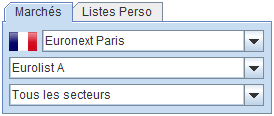 |
This tab contains 3 dropdown lists to define and filter the content of the list shown below:
The displayed list contains all instruments from the software's reference list with eventually instruments added by the user. |
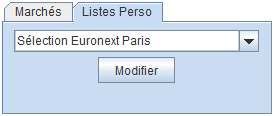 |
This tab contains the dropdown list allowing the display of instruments from a personal list created by the user. The button triggers the opening of the dialog window to add/remove a personal list and modify its content. The user can create as many personal lists as they wish, each with any number of instruments from various exchanges. |
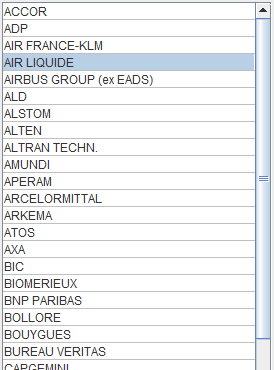 |
These lists allow for the selection of instruments that will be displayed in the various workspace screens. For the Technical Analysis chart windows, several selection modes are available and programmable by opening the option in the general menu :
|
By right-clicking on this list, a context menu appears to allow for the choice of a function regarding the selected instrument. Some of these functions can also be triggered from the general menu.
Context menu items:
|
|
to display the characteristics of the selected instrument. |
|
|
to add this instrument to a personal list without having to open the dialog window by clicking the button from the tab. |
|
|
to transfer this instrument from the personal list to another personal list (This option is available when a personal list is selected). |
|
|
to delete the selected instrument from the reference list or from a personal list. This option is only available in the following two cases: the instrument was entered manually by the user into the reference list or the context menu is open at the tab and a personal list is selected. |
|
|
to open the dialog window allowing for placing a market buy order for the selected instrument. |
|
|
to open the dialog window allowing for placing an SRD buy order for the selected instrument. |
|
|
to open the dialog window allowing for placing a short sell order for the selected instrument. |
|
|
to perform a nominal division of the selected instrument: updating the price history and, if applicable, portfolio positions. |
|
|
to consult the Instruments list paragraph of the user manual on screen. |
Note
It is not possible to delete instruments from the reference list that are managed by Ariane Software and automatically updated in the software.
Below the "Market" and "Personal List" tabs, a search field allows you to enter the name or ISIN code of an instrument searched for among the exchanges.
This function is detailed in paragraph Searching for an instrument.
At the top and center of the screen, a tab box allows direct access to the five main functional parts of Axial Finance.

|
|
for opening chart windows and performing technical and graphical analysis operations on "end of day" prices, "intraday" prices and receiving the real-time feed. |
|
|
for applying buy-sell strategies on price history and analyzing results. |
|
|
for implementing "screening" of instruments by market as well as other trading help tools. |
|
|
to analyze listed companies and compare their financial performance. |
|
|
to record and track instruments in portfolios. |
Important
Upon closing the program, Axial Finance remembers the workspace present in the area, a workspace that will be automatically re-displayed as is upon the next software startup if this option is chosen in the general menu. In the event that the option was chosen, the restored workspace will therefore be the last selected workspace but without any subsequent changes made after the user's save command.
 |
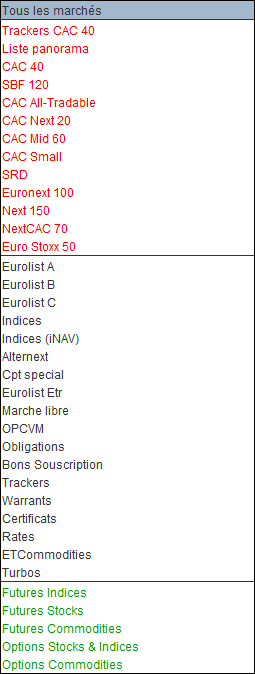 |
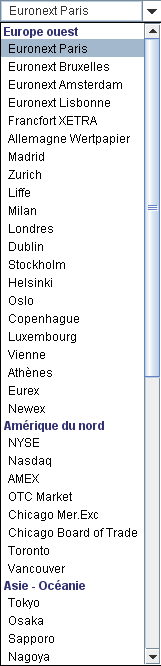
Axial Finance allows access to instruments from practically all global exchanges. Exchanges are classified by geographical area. Then, for each exchange, instruments can be filtered by market segment or by indices. In the example opposite, Euronext Paris has been selected. The second drop-down list shows the possibility of displaying for this exchange:
|
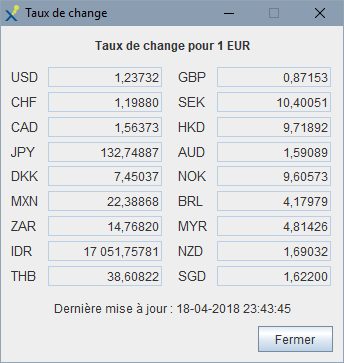 |
Axial Finance is equipped with a feature that automatically updates exchange rates for the various exchanges relative to the reference currency at regular intervals. These exchange rates are used during currency operations in . To display the exchange rate window, click on in the general menu and then choose the option. |
The instruments listed in the reference list provided with the program include, in particular, their business sector according to a classification generally used by financial analysts.
The sectors thus selected by Axial Finance number about thirty.
Users can adapt this classification at their convenience by following the procedure described in the Personalizing the list of economic activity sectors paragraph.
Given the very large quantity of instruments listed on various global exchanges as well as the frequent changes in their composition, Axial Finance has adopted the following principles to provide maximum flexibility and adaptability to each user's needs:
-
The software's database keeps a global list known as the reference list in memory with all instruments from the various exchanges such as Stocks, Indices, Trackers, Futures, Currencies, Commodities, and Rates.
-
This reference list is automatically updated at each software startup by downloading from the Ariane Software server.
-
Users also have the possibility to manually add other instruments to the reference list (e.g., UCITS).
-
The content of the reference list can be displayed by exchange, market, or business sectors: see paragraph Instrument lists in the "Workspace Presentation" chapter.
-
To facilitate the use of instruments, users can compose as many personal lists as they wish with the instruments they want to use in Portfolio management, Technical Analysis, Fundamental Analysis, or Trading decision support operations. Each personal list can contain any number of instruments.
On its Internet server, Ariane Software provides users of the software with the information necessary for the permanent update of the reference list of financial instruments from the various exchanges.
This data is regularly updated based on changes in listed companies, for example:
-
Listing or delisting
-
Change of market segment
-
Change in index composition
-
Change of name or codification
The reference list contains the following information for each financial instrument:
-
The listing exchange
-
The Axial Finance identification code
-
The market segment of belonging
-
Type
-
Currency
-
ISIN code ("International Instruments Identification Number" according to the ISO 6166 standard)
-
The mnemonic code defined by the exchange
-
SRD membership for Euronext Paris
-
Economic activity sector
-
The underlying and the expiration date in the case of Futures, Warrants, Options, etc
-
Specific broker codes to which order placement is possible
-
The list of indices in which the instrument is listed
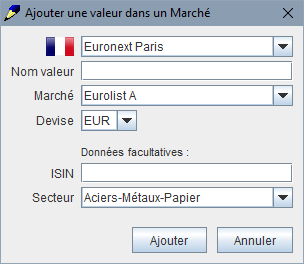
This procedure is used when an instrument does not exist in the reference list. Such an instrument is then called a "personal instrument" and will appear in red in the reference list. The user must enter at least the following information to define the instrument:
-
The exchange
-
Name
-
Market segment of the exchange
-
Currency
The ISIN code and economic activity sector are optional and can be added later.
 |
|
In the input field at the top of the reference instruments list, it is possible to enter:
-
either the full name of the instrument
-
or part of the name
-
the ISIN code
-
the mnemonic code
Axial Finance then displays the list of matching instruments:
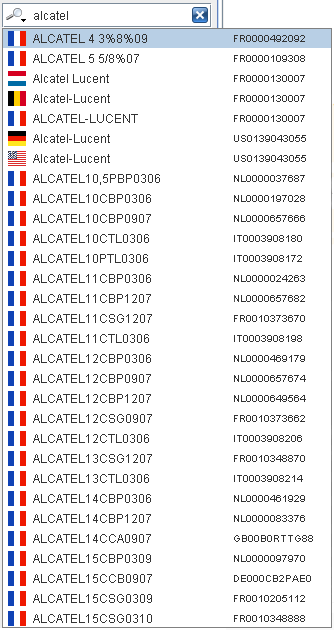
For each instrument found, this window indicates the exchange (flag), the full name, the mnemonic code and the ISIN code.
By clicking on the line of the searched instrument, it is automatically displayed in the reference list.
When the search yields no results, the name entered in the search field is displayed in red.
The search result is limited to the first 40 results. In this case, complete the instrument name to reduce the number of possible matches.
The search result prioritizes instruments whose name:
-
is identical to what was entered in the search field
-
starts with the characters entered in the search field
-
contains the characters entered in the search field
-
Display the instruments list and open the tab.
-
Click on the button to open the window below:
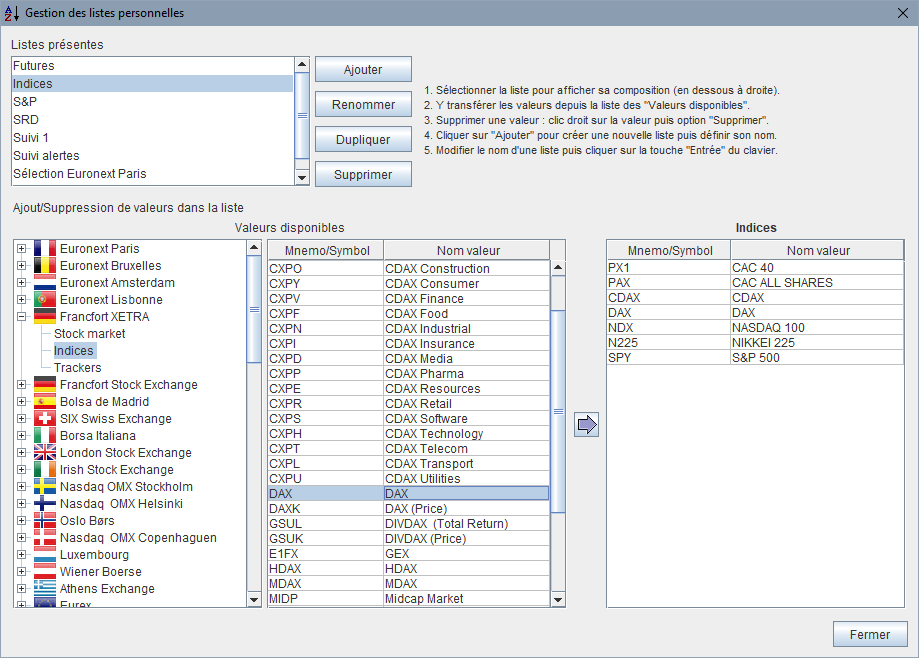
-
Click on the button and then enter its name in the table.
-
Select its name in the table of existing lists. The instruments contained in this list are then displayed below and to the right in the table named after this list.
-
Choose the exchange and the market for the instruments to be added.
-
In the frame, select the instrument or instruments to add to the personal list and then click on the button

Note
To add a single instrument, simply double-click it in the table.
To delete an instrument from a personal list:
-
Select the instrument in the "Instruments" table of the list and press the Delete key on the keyboard or open the context menu and choose the option.
-
or, directly from the reference list, open the context menu and choose the option.
Only instruments defined as personal ones, added by the user, can be deleted from the reference list.
Select the instrument in the reference list, open the context menu and choose the option.
The instrument details page presents the information available for an instrument in the reference list.
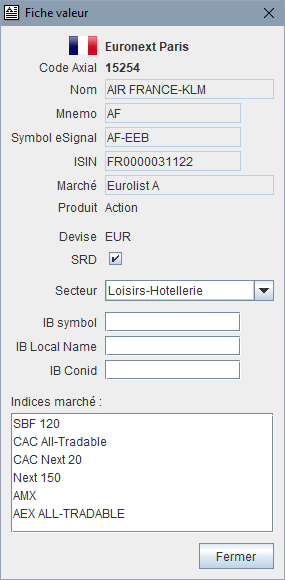 |
Certain information can be modified by the user:
|
Axial Finance was designed to simplify this operation as much as possible by taking advantage of all available Internet resources.
Price updates can be performed in several different ways for subscribed users:
-
Automatically when displaying the instrument in a chart if the Internet connection is open. The prices of the instrument are updated from the date of the last price present in the software's database. In this case, the entire available history of the prices is not reloaded into the software.
-
By clicking on the option in the chart menu. In this case, the entire available history of the instrument's prices is reloaded into the software.
-
By downloading via the Internet for subscribed users. This download mode is implemented very simply upon user request.
-
Completely automatically at software startup for subscribed users. This automatic update concerns instruments of type stocks and indices. The download takes place at program startup, as soon as the Internet connection is open and without user intervention. Axial Finance determines the necessary update period and launches the download which occurs simultaneously with other operations performed by the user.
For non-subscribed users, through importing prices from a file (text or Excel) that the user can obtain on free-access websites. This last possibility, slightly more complex to implement than the previous two, can be useful in certain particular cases for instruments such as SICAVs or FCPs whose prices are not widely distributed.
Upon the first use of Axial Finance, it is advisable to update the instrument prices. The program is provided with its database loaded with the available prices at the date of creation of the installation file; downloading histories from the menu then allows filling the elapsed period since that date.
Then, by activating automatic mode, prices will be updated at each program startup or the program will wait until the computer is connected to the Internet.
Downloading end-of-day prices requires a subscription. If automatic mode is activated, this download can also be launched at any time as long as the downloading process is not currently active.
Downloading allows obtaining at once the prices for instruments:
-
from one or several markets of the same exchange,
-
from one or several personal lists,
-
from one or several instruments of the same market segment.
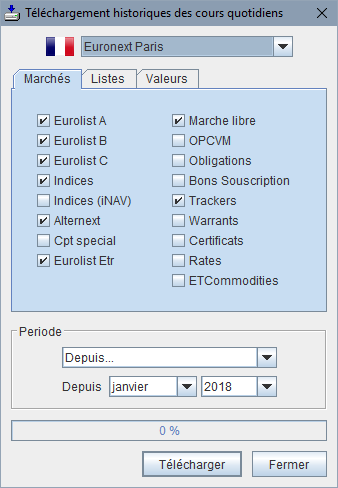
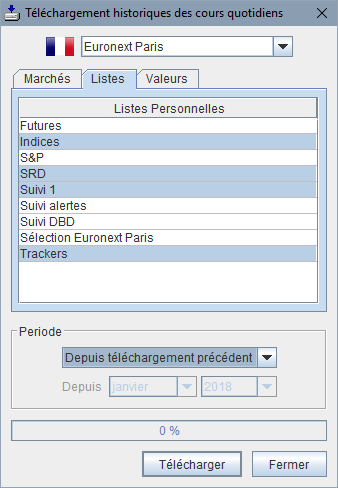
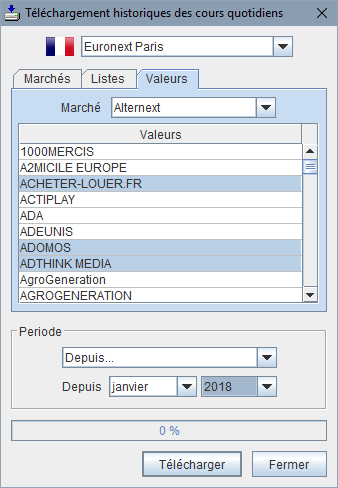
To perform a download, follow this procedure:
-
In the general menu , choose the option to open the dialog window below.
-
Choose the exchange for the prices to be downloaded.
-
According to the prices to be updated, select one of the , or tabs:
-
The tab allows choosing one or more markets of the chosen exchange.
-
The tab allows choosing instruments from one or several personal lists (instruments that may belong to multiple exchanges).
-
The tab allows choosing one or several instruments from a market segment of the chosen exchange.
-
-
Then, define according to your needs the duration of the prices to be downloaded in the section. This list offers the following choices: Since previous download, Before last prices, Last week, Last fortnight, Last month, Last 3 months, Last 6 months, Last 12 months, or Since ... a date to be specified later by the first of the month and the year.
-
Then click on the button.
 |
 |
 |
The download begins and the progress is displayed in a panel with the quantity of instruments and prices downloaded. The duration of the download varies according to the speed of the Internet line and the number of prices requested. The window closes when the download is finished.
Axial Finance remembers the choice of download parameters and records the date of the last price update. Thus, during subsequent updates, it is sufficient to remain with the Since previous download option.
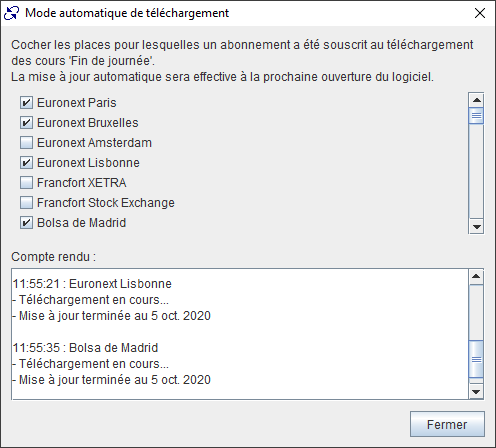
To activate or deactivate automatic mode:
-
In the general menu , choose the option to open the dialog window below.
-
Check (or uncheck) the boxes for the financial exchanges for which automatic mode is requested (not requested).
-
Click on the button.
At the next program startup, prices will be updated automatically for the requested exchanges, while the program executes other functions commanded by the user ("background task" mode).
The window has a report area, viewable at any time, which records all operations performed.
Important
In automatic mode, Axial Finance records for each exchange the date of the last downloaded prices. This date is used as the starting point of the download period during subsequent program startups. To avoid overloading the Internet connection, the automatic download period is limited to the last 30 days relative to the current date. The report area will indicate if there were older prices. In this case, use the end-of-day price download from the menu to update the period not covered by automatic mode.
This procedure is used when price files in text (CSV) or Excel format are available for download on the Internet.
Users with such text or Excel files can transfer them according to the following procedure into the software database after having temporarily saved them on the computer's local drive.
Important
Instruments can be referenced in three different ways of your choice:
-
by specifying the exchange and the ISIN code
-
or by specifying the exchange and the mnemonic code (symbol) of the exchange
-
or by specifying the Axial Finance identification code. This code is indicated in the instrument details viewable from the instruments list.
In the case of referencing by exchange and ISIN or mnemonic code, the file must only contain the prices for instruments belonging to a single exchange. The exchange reference is performed in the import window; only the ISIN or mnemonic code must be present in the price file.
In the case of referencing by the Axial Finance identification code, the file can contain prices for instruments from several exchanges. In this case, the selection of the exchange in the import window is not used.
Axial Finance erases all prices currently in the database that fall between the dates of the first and last price for each instrument and replaces them with the imported ones.
Note
If the file only contains prices for a single instrument, the ISIN code of the instrument may not be present in the file. In this case, the ISIN code must be specified in the import window.
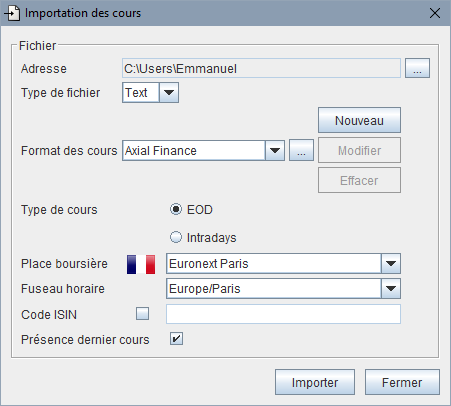
-
In the general menu , choose the option to open the dialog window below.
-
Click on the button to the right of the field to open the file selection window for the file temporarily saved on the computer's hard drive. The path of this file is then entered in the field.
-
Choose the file type (Text or Excel).
-
Choose the format of the prices in the file. Axial Finance offers a list of commonly used formats. However, the user has the possibility to define their own formats by clicking on the
 button to open the
creation or modification window for custom formats (see the procedure in paragraph
Configuring price formats).
button to open the
creation or modification window for custom formats (see the procedure in paragraph
Configuring price formats).
-
Specify whether the prices are EOD (End of Day) or intraday by checking the corresponding box.
-
Also define the exchange for the prices in the file in the case of ISIN-based referencing.
-
In the case of intraday prices, also specify the time zone for the times in the file.
-
If the price file contains prices for only one instrument without the ISIN or the Axial Finance identification code, the box must be checked and the code entered in the corresponding field. Axial Finance verifies the existence of an instrument with that code in the reference list for the defined exchange. If the ISIN code is unknown, the import will be refused. It will then be necessary to enter this new instrument manually in the reference list before importing the prices.
-
Check or uncheck the box depending on whether the file actually contains the latest prices for the instruments.
-
Click on the button to launch the import.
This procedure allows for defining the file type, the position of data, and the character used as a separator for this data.
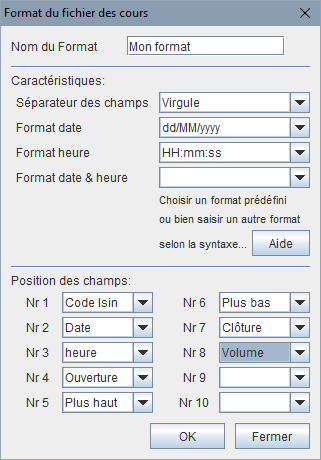 |
|
The downloading and updating of intraday prices is performed for subscriptions to the real-time stream.
Axial Finance allows downloading and storing up to 12 months of intraday prices with a 1-minute periodicity in its database.
-
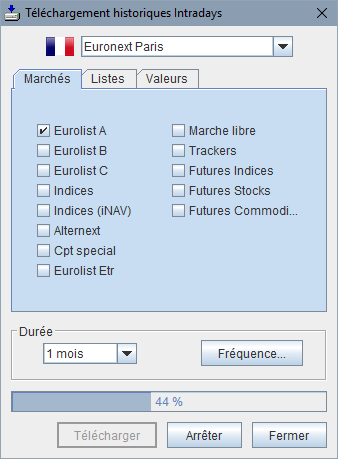
In the general menu , choose the option to open the dialog window below.
-
Define the instruments to be downloaded in one of the , or tabs.
-
In the section, choose the number of days, weeks, or months to download. 1 day corresponds to the current day if this operation is performed during market hours, or the last available trading day.
-
Click on the button.
See the procedure described in paragraph Importing prices from an external file of the End of Day Price Update section.
The identification codes and passwords for subscriptions made by the user are automatically recorded in the software at program launch (Internet connection open). The user can check their subscription status in the management window by choosing the option from the general menu.
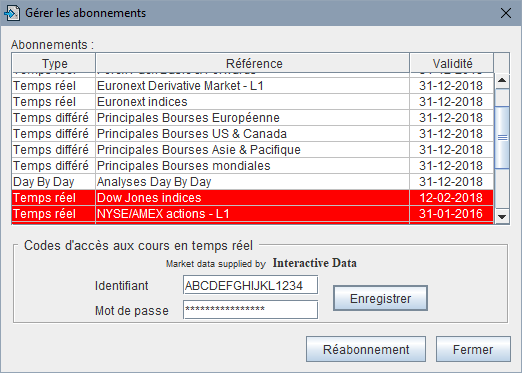
For each subscribed or renewed subscription, the window indicates:
-
The type of subscription (Daily, Real-time, Delayed, Day By Day, etc.)
-
The name of the subscription
-
The expiration date
Unrenewed subscriptions are indicated with a red background.
Note
In the case of a real-time stream subscription, the user has the option to manually enter the identifier and password if needed. To do this, the codes are entered in the Identifier and Password fields and then saved by clicking the button.
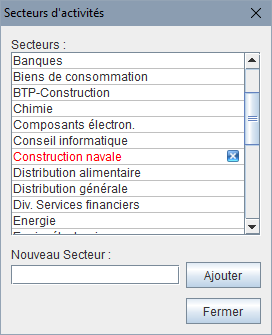
In the reference list, "stock" type instruments are generally assigned to a sector. In addition to the sectors already present in the software, the user has the possibility of adding additional sectors:
 |
|
Note
When a sector is deleted, the instruments associated with it will have an empty sector field and will appear in the personal list only if the option is chosen. In that case, choose another sector by opening the window.
When a new sector is added, it is necessary to proceed with assigning instruments to it by opening the window.
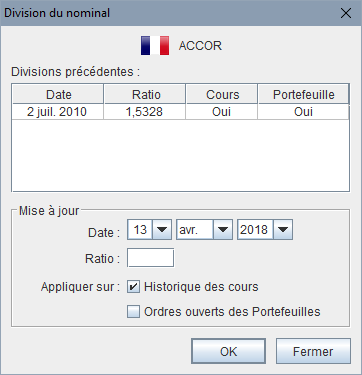
When an instrument's nominal value changes, the historical prices in the database up to the date of the split must be modified, as well as target prices, support or resistance levels if this instrument is in a portfolio. Axial Finance easily performs these operations with the following procedure:
 |
|
Important
The ratio corresponds to the proportion between the number of shares after and before the operation. For example, multiplying by 2 the number of shares results in a ratio of 2 (which also corresponds to a division of the price by 2). In case of error, cancel the operation by repeating it with an inverse ratio (e.g., 0.5 instead of 2) at the same date.
Note
If later, the history of this instrument is downloaded again with prices without the split, it will be necessary to repeat this operation. The table above summarizes the operations already performed.
Axial Finance allows for backing up essential data to the hard drive or an external device (USB key, etc) and restoring it later.
To back up data:
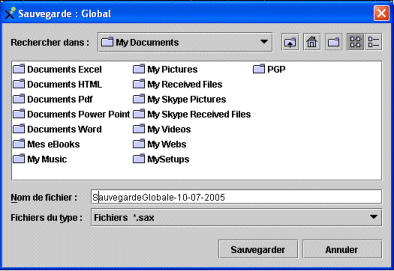
-
In the general menu , choose the option and then or a specific .
-
In the dialog window, select the directory in which the file will be saved.
-
Provide a name for the backup file in the provided field, then click the button.
The extension .sax will be automatically added to the saved file.
Note
Remember the name given to the saved file and the folder in which it is stored so that you can find it during restoration.
To restore data:
-
In the general menu , choose the option and then or a specific .
-
In the dialog window, select the directory in which the file is stored and then the backup file with the extension
.sax.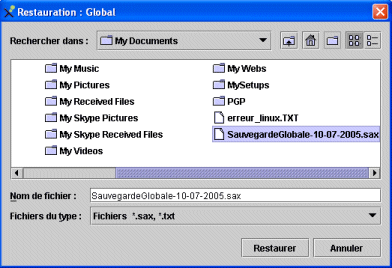
-
Click on the button.
The software's appearance can be modified. Axial Finance uses the Java Metal style by default. It is possible to change the interface style so that it resembles the operating system:
-
In the general menu , choose the option .
-
Select the box corresponding to the desired "Look & Feel".
It is recommended to relaunch the software after this operation.
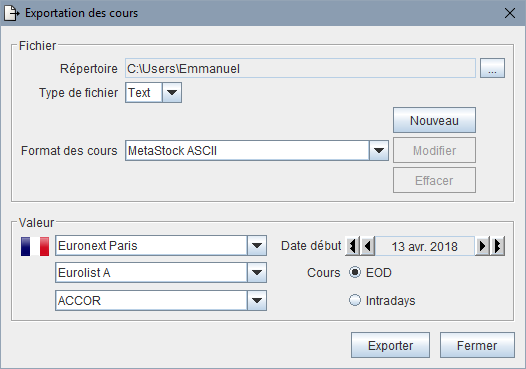
Axial Finance allows exporting "End of Day" and "intraday" prices of an instrument present in its database. Prices can thus be stored in a text (CSV) or Excel file and then used by the user for their strictly personal use. The price export format can be defined by the user (see the procedure for defining the format in paragraph Configuring price formats).
-
In the general menu , choose the option to open the dialog window shown here.
-
Define the by clicking on the corresponding button which opens the selection window.
-
Choose the file type (Text or Excel).
-
Choose the format of the prices in the file.
-
Choose the instrument using the dropdown lists.
-
Choose the date of the first price to export.
-
Specify whether the prices are EOD or intraday by checking the corresponding box.
-
Click on the button.
The name of the text file is defined with the ISIN code of the instrument (for example,
FR0000120404.txt for Accor).